
Robot Lawnmower
Robot Lawnmower
Robotic Lawnmowers products

How do I install the boundary wire & charging station for my Robot Lawnmower
Quick Answer
To install your robot lawnmower, first position the charging station on a flat edge of your lawn. Next, lay the boundary wire around the mowing area, ensuring it returns to the charging station to create a complete loop. Once connected and powered, the charging station LED should display a solid light, confirming the boundary wire is correctly installed.
Before You Begin
Before starting the installation, ensure you have:
- Your robot lawnmower.
- Charging station.
- Boundary wire.
- Boundary wire fixing pegs.
- Charging station fixing pegs.
- A hammer or rubber mallet.
- Wire strippers.
- Access to a mains power socket.
Before laying the boundary wire:
- Remove any obstacles or debris from the installation area.
- Plan the mowing area and charging station location.
- Ensure the total boundary wire length does not exceed 300 metres.
Tip: Watching the installation video before you begin can make the installation process much easier.
Planning & Installing Video
The first stage of using your robot mower is setting up the charging station and laying out the boundary:
Steps
1. Install the Charging Station
Choose a suitable location for the charging station.
The charging station should be:
- Positioned on the edge of your lawn.
- Installed on flat, level ground.
- Free from obstacles directly in front of the station.
- Close enough to reach a mains power socket.
Once the boundary wire has been positioned:
- Place the boundary wire underneath the charging station.
- Secure the charging station using the four fixing pegs provided.
- Take care not to pinch, damage or kink the boundary wire.
Important: An incorrectly positioned charging station may prevent the mower from docking correctly.
NOTE: mower will not dock correctly if the station is incorrectly set.


2. Lay the Boundary Wire
The boundary wire creates the mowing area for your robot lawnmower.
To install the wire:
- Starting at the charging station, lay the wire around the edge of your lawn.
- Secure the wire using the supplied pegs, tapping them gently into the ground with a hammer or rubber mallet.
- Strip approximately 10–15 mm of insulation from both wire ends.
- Twist the exposed wire strands before inserting them into the charging station terminals.
Connect the wire as follows:
- F = Outgoing boundary wire (runs underneath the charging station).
- B = Returning boundary wire (returns to the charging station).
When laying the wire, ensure that:
- There is at least 2 metres of straight boundary wire directly in front of the charging station.
- No boundary wire corners are tighter than 120°.
- The total boundary wire length does not exceed 300 metres.
- Any excess wire is laid flat underneath or behind the charging station, outside the mowing area.
- Do not coil or roll up surplus wire, as this can interfere with the boundary signal.
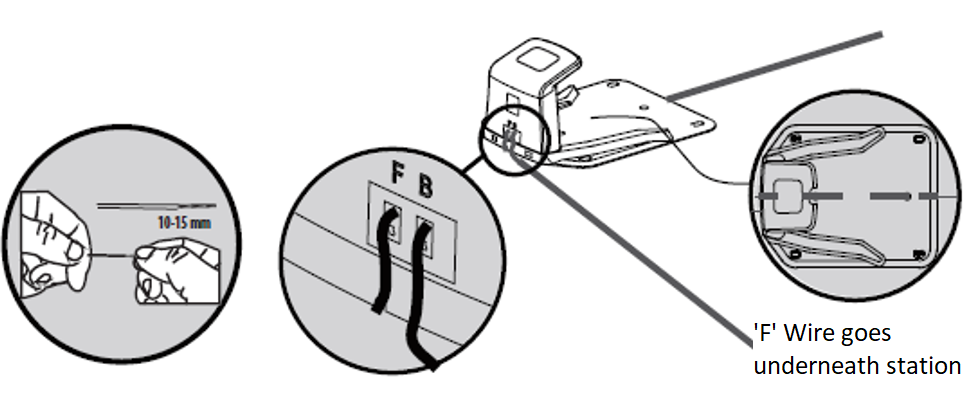


3. Power the Charging Station
- Plug the charging station into the mains power supply.
- Check the LED indicator on the rear of the charging station.
The LED status indicates:
- Solid LED – The charging station and boundary wire are operating correctly.
- Flashing LED – The boundary wire is broken, disconnected or incorrectly installed and should be inspected before using the mower.
Frequently Asked Questions
Where should I place the charging station?
Install the charging station on flat, level ground around the edge of your lawn with a clear approach for the mower. Ensure there is at least 2 metres of straight boundary wire extending from the front of the charging station.
Which way does the boundary wire connect?
The outgoing boundary wire connects to terminal F, while the returning boundary wire connects to terminal B.
How much boundary wire can I install?
The total boundary wire length must not exceed 300 metres.
Can I coil any spare boundary wire?
No. Excess wire should be laid flat underneath or behind the charging station, outside the boundary. Never coil or roll up spare wire, as this can affect the boundary signal.
What does a flashing LED on the charging station mean?
A flashing LED indicates there is a problem with the boundary wire, such as a break, poor connection or incorrect installation. Inspect the entire boundary wire and all connections before operating the mower.
Why won't my robot return to the charging station?
This is commonly caused by:
- The charging station not being level.
- Less than 2 metres of straight boundary wire leaving the charging station.
- Incorrect boundary wire connections.
- A damaged or broken boundary wire.
- Tight corners or incorrect boundary wire layout.
Correcting these issues should allow the mower to locate and dock with the charging station successfully.
How do I set up and start my Robot Mower
Quick Answer
Before using your robot lawnmower for the first time, fully charge the battery, ensure the charging station and boundary wire have been installed correctly, then follow the start-up instructions for your specific mower series.
Before You Begin
Before starting your robot lawnmower, make sure:
- The battery is fully charged.
- The charging station is installed on level ground.
- The boundary wire is connected correctly and is not damaged.
- The charging station LED shows normal operation.
- The mower is correctly docked on the charging station.
Important: If the charging station is not level or the boundary wire is broken, the mower may not charge or operate correctly.
Amiro 400i Setup Video
X Series Setup Video
Eco Model Settings Video
The start-up procedure varies depending on your series type of mower.
First of all, the battery must be charged.
Charging the Battery
- Fully charge the mower before first use.
- A fully discharged battery typically requires approximately 100 minutes to charge.
- Once fully charged:
- If the mower is within its scheduled mowing period, it will leave the charging station automatically.
- If the mower is paused or switched off, it will remain on the charging station until started manually.
You now can switch on the machine. Listed below are manual starting procedures for each series type:
X-Series (x50-100 & x50i-100i)
X-Series (X50, X80, X100, X50i, X80i and X100i)
- Turn the red power switch on at the rear of the mower.
- Press the STOP button.
- Lift the control panel cover.
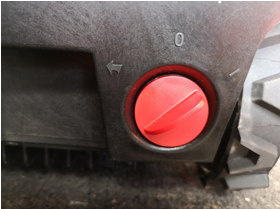
- Unlock the control panel.
- Wait until the LEDs switch off.
- Select your preferred mowing duration (for example 4H).
- Select the signal channel (S1 or S2) to match your charging station.
- Press the Start button.
- Close the cover.
The mower will emit a long beep before beginning to mow.
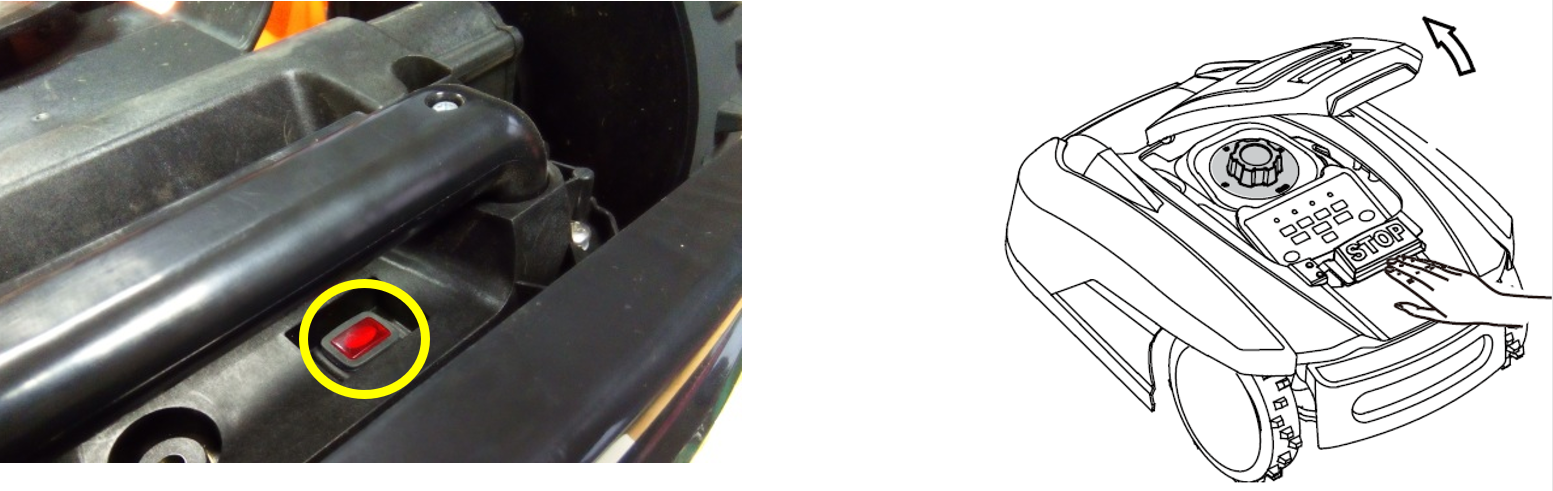
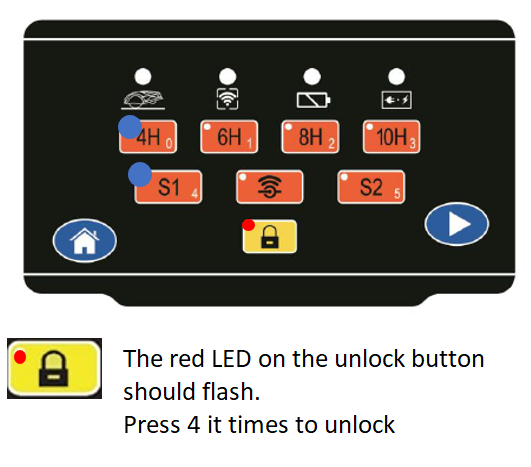
Amiro Series (300, 400, 300i and 400i)
- Turn the red power switch on at the rear of the mower.
- Press the STOP button.
- Lift the cover.
- Select the signal channel (S1 or S2) to match the charging station.
- Select the required working time (for example 4H).
- Press and hold the Unlock button.
- While holding Unlock, press the Start button.
- After a few seconds, the mower will begin mowing.

AMIRO (300-400, 300i-400i)
1. Turn red switch at the back.
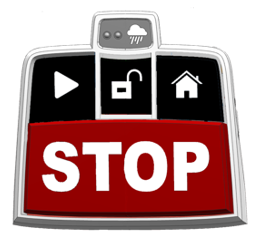
2. To Recommence mowing, please press the STOP button ^ again.
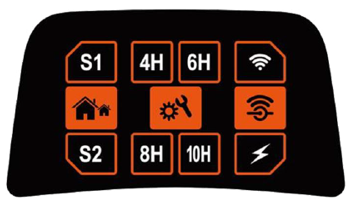
3. Match signal button (S1 or S2) to charging station.
4. Choose your preferred working-time for example 4 hours = 4H
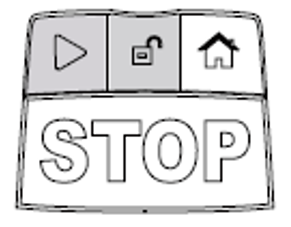
5. Press and hold the unlock button, then press the start button. After a few seconds the mower should engage.
Compact 280R
Follow the operating instructions supplied with your Compact 280R model. If you require further assistance, refer to the user manual or contact Customer Support.
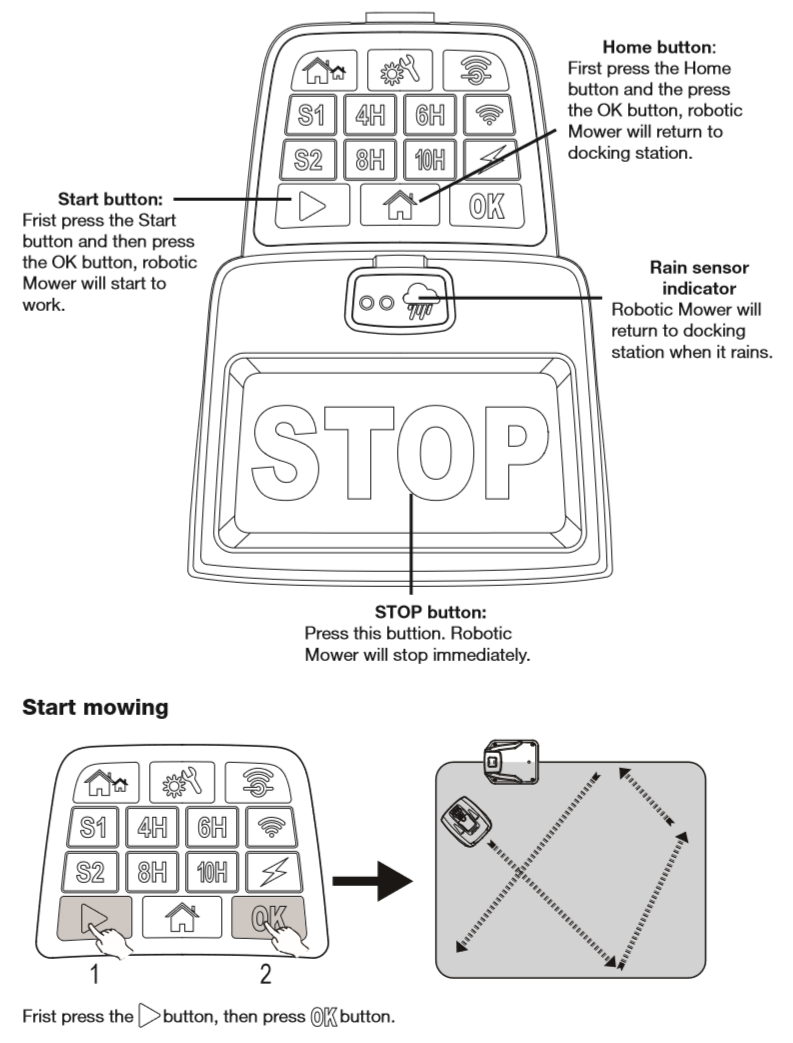
SA Series (500ECO, 600H and 650ECO)
- Press the power button located on the rear underside of the mower.
- Press the STOP button.
- Lift the cover.
- Unlock the control panel.
- Select your preferred mowing settings.
- Press the Start button.
- Close the cover.
Note: The SA600H uses a touchscreen display, so some controls differ from the other SA models.
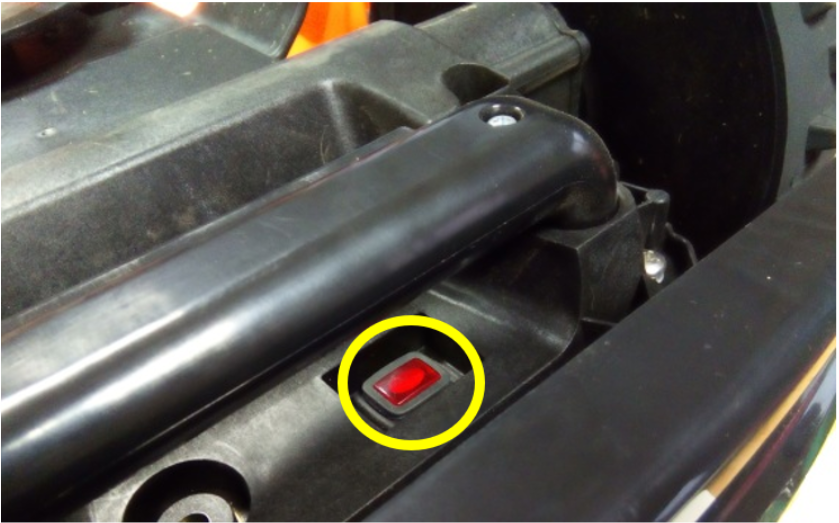
1. Press the start button at the back-bottom.
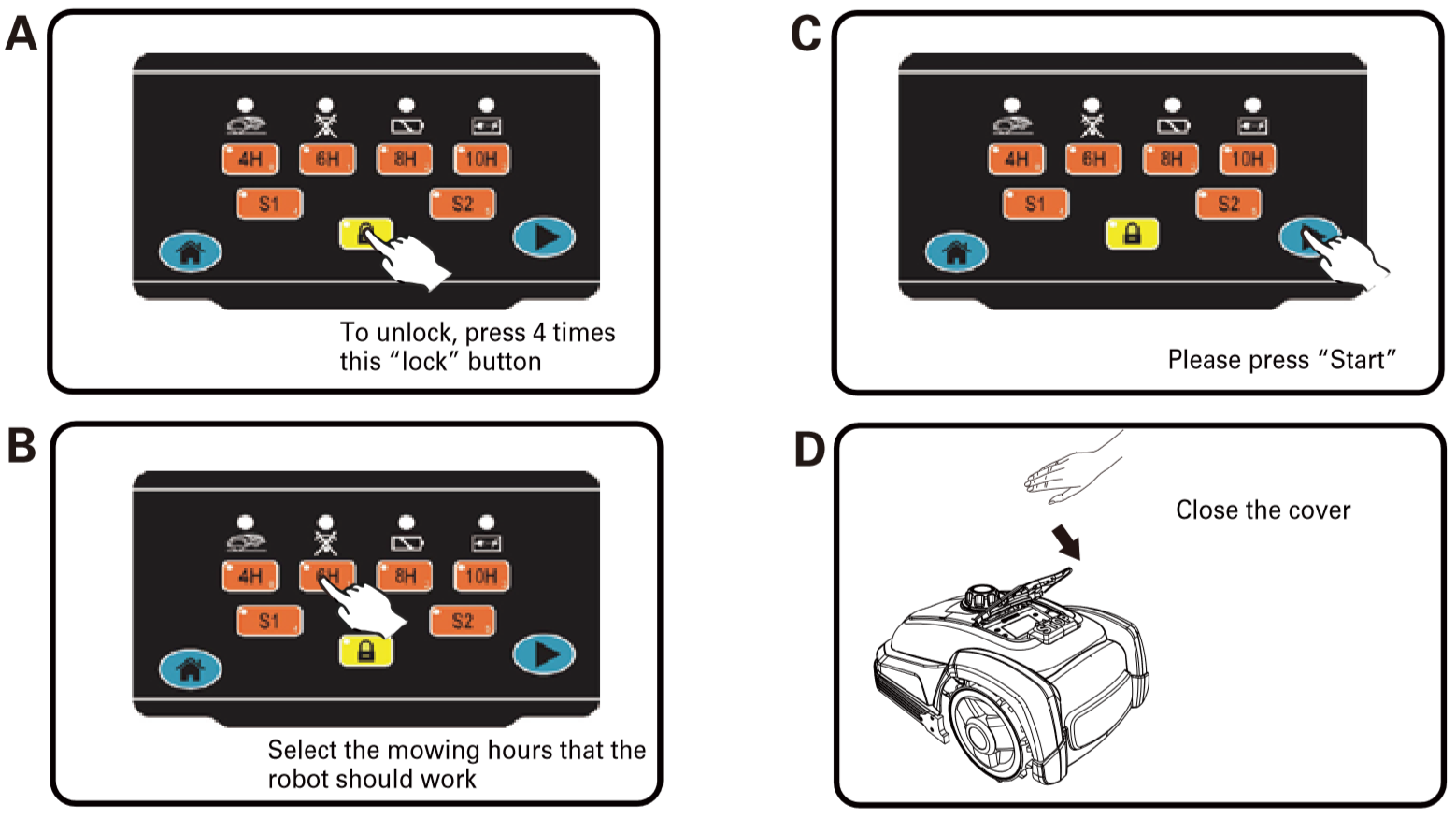
2. Press STOP button, and lift cover. Then follow the above steps^
Returning the Mower to the Charging Station
To manually send your robot lawnmower back to its charging station:
- Press STOP.
- Lift the cover.
- Unlock the control panel (enter your PIN or the default unlock sequence).
- Press the Home button.
- Close the cover.
The mower will automatically return to the charging station.
Frequently Asked Questions
Why won't my robot mower start?
Check that:
- The battery is fully charged.
- The mower is switched on.
- The control panel has been unlocked.
- The correct signal channel (S1 or S2) has been selected.
- The boundary wire is connected and undamaged.
How long does it take to charge the mower?
A fully discharged battery takes approximately 100 minutes to charge.
Why does my mower leave the charging station by itself?
If the mower reaches a full charge during its programmed mowing schedule, it will automatically leave the charging station and continue mowing.
How do I send the mower back to the charging station?
Press STOP, unlock the control panel, select the Home button, then close the cover. The mower will return to the charging station automatically.
What if my mower will not dock correctly?
This is usually caused by:
- An uneven charging station.
- A damaged or disconnected boundary wire.
- Obstacles around the charging station.
- Incorrect charging station installation.
Check the charging station installation before attempting to use the mower again.
Do all Yard Force robot mowers start in the same way?
No. The start-up procedure varies slightly between the X-Series, Amiro, Compact and SA Series. Always follow the instructions for your specific model.
How do I know what the LED lights mean on my Robot Lawnmower
Quick Answer
The LED on your robot lawnmower's charging station shows the status of the boundary wire and charging system.
- No LED – No power to the charging station.
- Flashing red LED – Boundary wire fault or break detected.
- Solid blue LED – Charging station and boundary wire are operating correctly.
- Flashing blue, red or pink LED – Normal when the mower is charging.
Before You Begin
Before diagnosing an LED fault, check that:
- The charging station is connected to the mains power supply.
- The power socket is switched on.
- The boundary wire is securely connected to the charging station.
- The mower is correctly positioned on the charging station.
Important: A solid red LED is not a fault. Only a flashing red LED indicates a problem with the boundary wire.
Here are the various types of signals given by the LED in-between the two connecting rods:

No LED Displayed
If there is no LED illuminated on the charging station:
- Check the charging station is plugged into the mains.
- Confirm the power socket is switched on.
- Check the power cable is securely connected.
- Inspect the charging station for any signs of damage.
If there is still no LED, the charging station may require further inspection.

Flashing Red LED
A flashing red LED usually indicates a problem with the boundary wire.
Check the following:
- Inspect the boundary wire for any cuts, damage or loose connections.
- Check both the front and rear charging station wire connections.
- Repair or reconnect any damaged sections.
Testing for a Hidden Boundary Wire Break
If no visible damage is found:
- Disconnect the existing boundary wire.
- Connect a short test loop of boundary wire directly to the charging station.
- Check the LED.
- If the LED changes to solid blue, the original boundary wire contains a break and should be repaired or replaced.
- If the LED continues flashing red, further investigation may be required.

Solid Blue LED but No Signal on the Mower
If the charging station LED is solid blue but the mower cannot detect the boundary wire:
- Disconnect one end of the boundary wire from the charging station.
- Check the LED.
- If the LED changes to flashing red, the charging station is operating correctly and the issue is likely with the mower.
- If the LED remains solid blue, the charging station may require further technical assessment.

Flashing Blue, Red or Pink LED
If the LED flashes blue, red or pink while the mower is docked and charging, this is normal behaviour.
No action is required.
Frequently Asked Questions
What does a flashing red LED mean?
A flashing red LED indicates the charging station has detected a boundary wire fault, such as a break, poor connection or damaged wire.
Is a red LED always a fault?
No. A solid red LED is normal on supported models. Only a flashing red LED indicates a boundary wire problem.
Why is there no LED on my charging station?
This usually indicates there is no power reaching the charging station. Check the mains power supply, socket, plug and power cable.
The charging station LED is blue, but my mower won't start. Why?
A solid blue LED means the charging station is operating correctly. If the mower cannot detect the boundary signal, the issue may be with the mower itself rather than the charging station.
What does a flashing blue, red or pink LED mean?
This is normal while the mower is charging on the charging station.
I've completed these checks but the LED still shows a fault.
If the charging station continues to display an LED fault after completing the checks above, or there is still no power to the charging station, please contact Customer Support for further assistance.
My Robot Mower is showing LED Panel Errors and Warnings
Quick Answer
Your robot lawnmower's LED panel uses different colours and flashing patterns to indicate its current status or warn of a problem.
Common LED warnings include:
- Flashing red LED – The mower is locked or requires a PIN.
- Flashing blue LED – The mower is outside its scheduled mowing time.
- Solid red LED – The mower believes it has been lifted or tilted.
- Red LED with the mower returning home – The battery is low and requires charging.
Before You Begin
Before investigating an LED warning:
- Ensure the mower is switched on.
- Check the battery has sufficient charge.
- Remove any grass or debris from underneath the mower.
- Make sure the mower is positioned within the boundary wire.

Flashing Red LED – Mower Locked
A rapidly flashing red LED usually means the mower is locked and waiting for the correct PIN.
To unlock the mower:
- If you have never changed the PIN, press the unlock button four times. This is the factory default PIN.
- If you have created your own PIN, enter your personal code.
- Once accepted, the LED will turn off and the mower will unlock.
If you cannot remember your PIN, refer to the How to Change or Reset the PIN Code guide.

Flashing Blue LED – Outside the Scheduled Mowing Time
If the LED is flashing blue and the mower immediately returns to the charging station, it is likely outside its programmed mowing schedule.
To start mowing:
- Press the Hour button to select a mowing duration.
- The LED should remain solid blue.
- Start the mower as normal.

Flashing Blue LED – Outside the Scheduled Mowing Time
If the LED is flashing blue and the mower immediately returns to the charging station, it is likely outside its programmed mowing schedule.
To start mowing:
- Press the Hour button to select a mowing duration.
- The LED should remain solid blue.
- Start the mower as normal.

Solid Red LED – Lift Sensor Activated
A solid red LED may indicate the mower believes it has been lifted from the ground.
Check the following:
- Turn the mower off safely.
- Inspect the underside of the mower.
- Remove any grass, mud or debris preventing the lift sensors from operating correctly.
- Restart the mower.
If the LED remains red after cleaning the mower, perform a factory reset by following the How to Factory Reset Your Robot Lawnmower guide.

Red LED While Returning to the Charging Station
If the mower displays a red LED before returning to the charging station, the battery charge is low.
This is normal operation.
Once docked correctly:
- The mower will begin charging automatically.
- A flashing blue LED on the charging station indicates the mower is charging.
Frequently Asked Questions
Why is my robot lawnmower flashing red?
A flashing red LED usually means the mower is locked and waiting for the correct PIN to be entered.
Why does the mower return straight to the charging station?
This can happen if:
- The battery is low.
- The mower is outside its scheduled mowing time.
Check the LED colour to identify the exact reason.
My mower thinks it has been lifted. What should I do?
Inspect the underside of the mower and remove any grass or debris that may be preventing the lift sensors from operating correctly.
What is the default PIN?
The factory default PIN is entered by pressing the unlock button four times, unless it has been changed.
How do I know the mower is charging?
When the mower is correctly docked, the charging station will display a flashing blue LED, indicating that charging is in progress.
The warning remains after following these steps.
If the LED warning continues after completing the recommended checks, consult the relevant troubleshooting guide or contact Customer Support for further assistance.
How do I set the Pin Code on my Robot Mower
Quick Answer
You can change the PIN code on your robot lawnmower using the control panel. The method varies depending on your model, but most mowers allow you to create a new PIN by entering PIN setup mode. If you have forgotten your PIN, most models allow you to set a new one without restoring the factory default.
Before You Begin
Before changing your PIN code, ensure that:
- The mower is switched off.
- The battery has sufficient charge.
- You know your current PIN (if required by your model).
- You have your new PIN ready to enter.
Important: Once the PIN has been changed, the factory default PIN cannot be restored.
How to Reset the Pin Code
Standard Models
Follow these steps to change the PIN on compatible robot lawnmowers:
- Switch OFF the main power switch.
- Press and hold the Lock button.
- While holding the Lock button, switch the mower ON.
- Continue holding the Lock button for approximately 6 seconds until all LEDs on the control panel begin flashing rapidly.
- Release the Lock button.
- Within 6 seconds, enter your new PIN.
- The mower will confirm the new PIN with a single beep.
- The LEDs will switch off while the mower restarts.
- Once the Lock LED begins flashing again, the restart is complete and the new PIN is active.
You can now unlock the mower using your new PIN.
MB800 Models
To change the PIN on the MB800:
- Unlock the mower using the current PIN.
- Press and hold the Settings button until the mower beeps.
- Press the Down button once.
- When prompted, enter the current PIN.
- Enter your new PIN when prompted.
- The new PIN will be saved automatically.
PIN Entry on Models with Hour Buttons
Some models use the mowing time and signal buttons as a numeric keypad when entering a PIN.
Use the following button mapping:
| Button | Number |
|---|---|
| 4H | 0 |
| 6H | 1 |
| 8H | 2 |
| 10H | 3 |
| S1 | 4 |
| S2 | 5 |
Frequently Asked Questions
What is the default PIN?
Most compatible models use a default unlock sequence of pressing the Lock button four times, unless the PIN has been changed.
I've forgotten my PIN. Can I reset it?
Yes. Most models allow you to create a new PIN by following the standard PIN change procedure. The mower cannot be reset back to the original factory PIN.
Can I restore the factory default PIN?
No. Once a new PIN has been programmed, the factory default PIN cannot be restored.
Why won't my mower accept my new PIN?
Check that:
- You entered the new PIN within the required time after entering PIN setup mode.
- The control panel LEDs were flashing before entering the new PIN.
- The correct buttons were used on models that use the hour buttons as a numeric keypad.
Which models use the alternative PIN change method?
The MB800 uses a different procedure. Instead of entering programming mode, the PIN is changed through the Settings menu while the mower is unlocked.
What should I do if I still cannot change my PIN?
If the mower does not accept a new PIN after following the correct procedure, contact Customer Support for further assistance.
How do I do a Factory Reset on my Robot Mower
Quick Answer
A factory reset restores your robot lawnmower to its default settings and can help resolve certain operating issues. The reset procedure varies depending on your mower model.
Before You Begin
Before performing a factory reset:
- Place the robot lawnmower on a flat, level surface.
- Ensure the mower has sufficient battery charge.
- Remove any debris from underneath the mower.
- Check that the mower is switched off (unless instructed otherwise).
Important: The mower must be on a flat surface during the reset process, as the tilt sensors are recalibrated as part of the factory reset.
How to Factory Reset
If the mower does not seem to be functioning correctly, it is advisable to reset to factory settings:
Note: The Robot Mower must stand on a flat surface, because the inclination sensors are also zeroed.
Steps
SA500ECO, SA650ECO, SA900ECO and X-Series
To perform a factory reset:
- Switch the mower OFF.
- Place the mower on a flat, level surface.
- Press and hold the START button.
- While continuing to hold the START button, switch the mower ON.
- Wait for the mower to start up and for all LEDs to flash.
- Release the START button.
The factory reset is now complete.
Compact and NX Series
To perform a factory reset:
- Place the mower on a flat, level surface.
- Switch the mower ON.
- Press and hold the Time Selector button for 3 to 5 seconds.
- Release the button when you hear a beep.
The factory reset is now complete.
Frequently Asked Questions
When should I perform a factory reset?
A factory reset is recommended if your robot lawnmower is not operating correctly, is displaying unexpected behaviour, or if troubleshooting steps have not resolved the issue.
Will a factory reset delete my settings?
Yes. A factory reset restores the mower to its default settings. Depending on your model, you may need to reconfigure settings such as the mowing schedule or other preferences afterwards.
Why does the mower need to be on a flat surface?
The mower recalibrates its tilt and inclination sensors during the reset process. Performing the reset on an uneven surface may result in incorrect sensor calibration.
How do I know the factory reset has completed?
- SA500ECO, SA650ECO, SA900ECO and X-Series: All control panel LEDs will flash during start-up before the mower reboots.
- Compact and NX Series: The mower will emit a beep after holding the Time Selector button for 3 to 5 seconds.
My mower is still not working after a factory reset.
If the issue remains after completing a factory reset, check the charging station, boundary wire and battery before contacting Customer Support for further assistance.
My Robot Mower is showing the Wi-Fi LED indicator on the control panel (for Compact and i600 models)
Quick Answer
The Wi-Fi LED on your Compact or i600 robot lawnmower shows the current connection status between the mower and the mobile app.
- Slow flashing LED – The mower is not connected to Wi-Fi.
- Solid LED – The mower is ready to connect.
- Fast flashing LED – The mower is connected to Wi-Fi.
Before You Begin
Before troubleshooting the Wi-Fi connection, check that:
- Your mower is switched on.
- Your Wi-Fi network is available.
- You are within range of your Wi-Fi router.
- The CloudHawk app is installed and you're signed in.
- Your mobile device has Bluetooth and Wi-Fi enabled if required during setup.
Tip: Always check the CloudHawk app first, as it may provide additional information about the connection status.

Slow Flashing Wi-Fi LED
A slow flashing Wi-Fi LED indicates that the mower is not connected to a Wi-Fi network or cannot locate the configured network.
To reconnect:
- Press and hold the Wi-Fi button for approximately 5 seconds.
- Wait for the LED to change.
- If the LED becomes solid, the mower is ready to connect.
If the LED continues to flash slowly:
- Check that your Wi-Fi network is available.
- Move the mower closer to the router if possible.
- Open the CloudHawk app and follow the connection prompts.

Solid Wi-Fi LED
A solid Wi-Fi LED means the mower is ready to be connected.
To complete the setup:
- Open the CloudHawk app.
- Select your mower.
- Follow the on-screen instructions to complete the connection.
Once connected successfully, the LED will begin flashing quickly.

Fast Flashing Wi-Fi LED
A fast flashing Wi-Fi LED indicates the mower is connected to the network.
If you're experiencing connection problems despite the LED flashing:
- Restart the mower.
- Reopen the CloudHawk app.
- Check that the mower appears online.
- Confirm your phone is connected to the internet.
Frequently Asked Questions
What does a slow flashing Wi-Fi LED mean?
The mower cannot connect to your Wi-Fi network or has not yet been connected.
What does a solid Wi-Fi LED mean?
The mower is ready to connect to the CloudHawk app.
What does a fast flashing Wi-Fi LED mean?
The mower is successfully connected to the Wi-Fi network and should be available in the CloudHawk app.
My mower still won't connect.
If the Wi-Fi LED status appears correct but the mower does not connect:
- Check the CloudHawk app for connection errors.
- Restart both the mower and your mobile device.
- Confirm your Wi-Fi network is working correctly.
- Repeat the connection process if necessary.
Which models use this Wi-Fi indicator?
This guide applies to Compact and i600 robot lawnmower models with a built-in Wi-Fi indicator on the control panel.
My Robot Mower is not returning back to the charging station
Quick answer
If your robot mower is not returning to the charging station, check that the boundary wire is installed correctly and that the charging station is positioned correctly.
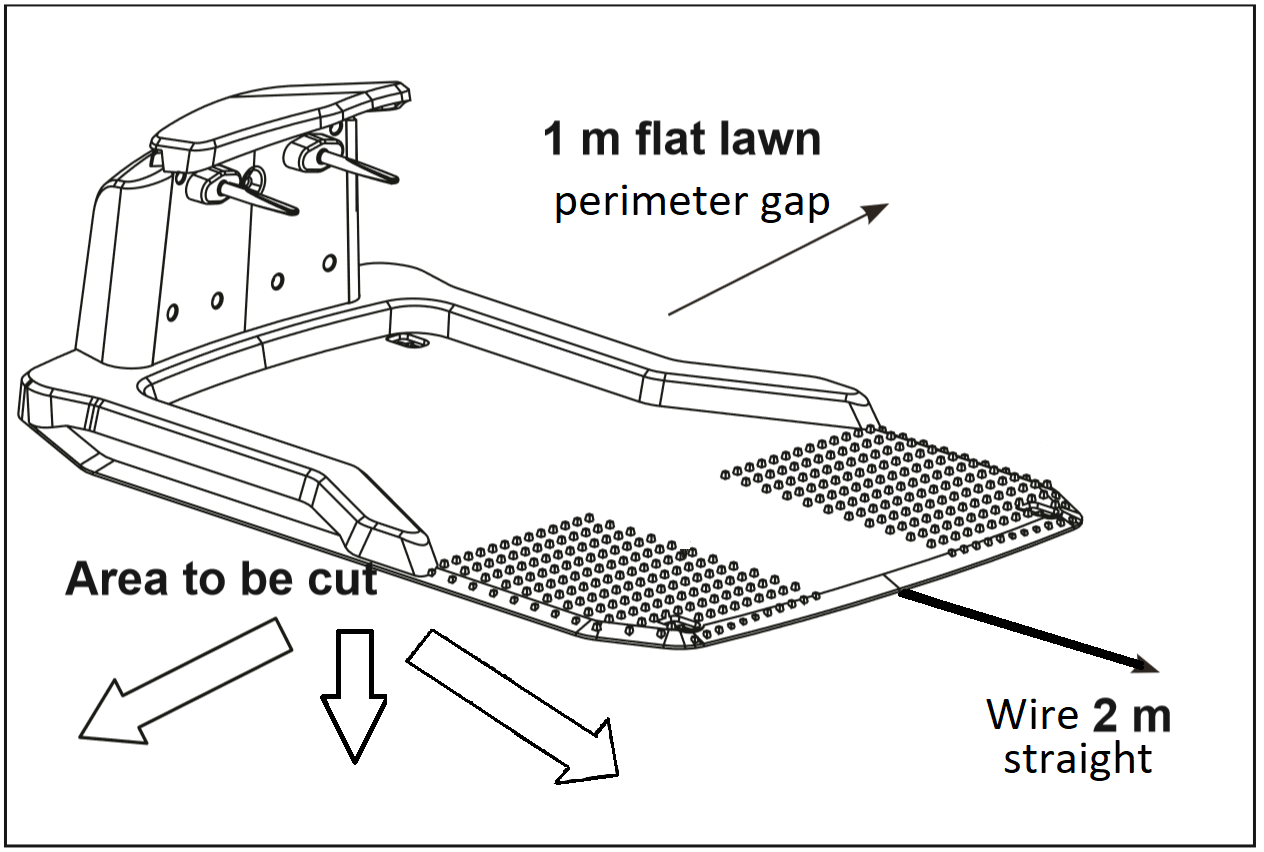
The boundary wire in front of and underneath the charging station must be laid in a straight line from the station. The charging station should be installed on a flat surface with enough clear space around it to allow the mower to approach and dock correctly.
Before you begin
Before checking the charging station, make sure:
- The robot mower is switched off or safely stopped
- The charging station is connected to the power supply
- The area around the charging station is clear of obstacles
- The boundary wire is visible and accessible for checking
Steps
1. Check the boundary wire position
Check the boundary wire in front of and underneath the charging station.
The wire should:
- Run in a straight line away from the charging station
- Sit flat against the ground
- Not be twisted, moved, or positioned at an angle near the station
A damaged or incorrectly positioned boundary wire may prevent the robot mower from finding the charging station.
2. Check the charging station location
Make sure the charging station has been installed in a suitable position.
The charging station should:
- Be placed on a flat, level surface
- Have a clear approach area in front of the station
- Be free from surrounding obstacles such as walls, garden furniture, or other objects
For further guidance, refer to the “Installing boundary wire & station” instructions.
3. Test the robot mower
Once the boundary wire and charging station position have been checked:
- Place the robot mower near the charging station.
- Start the mower and allow it to return to the station.
- Check that it can approach and dock correctly.
If the mower still does not return to the charging station, further checks may be required.
Frequently Asked Questions
Why is my robot mower not finding the charging station?
The most common causes are an incorrectly positioned boundary wire or an unsuitable charging station location. Check that the wire is straight in front of the station and that the station has a clear, flat area around it.
Does the boundary wire need to be straight near the charging station?
Yes. The boundary wire in front of and underneath the charging station should be laid in a straight line to help the robot mower locate and return to the station correctly.
Where should I install the robot mower charging station?
The charging station should be installed on a flat surface with enough clear space around it. Avoid placing it near obstacles that could prevent the mower from docking.
What should I do if my robot mower still will not return to the charger?
Check the boundary wire installation and charging station position again. If the issue continues, refer to the troubleshooting information for your specific robot mower model.
Using the CloudHawk application
Using the CloudHawk App with your Robot Mower
Quick answer
The CloudHawk app allows you to connect and control your robot mower from your smartphone. You can use the app to set mowing schedules, check mower information, adjust settings, receive notifications, and manage your robot mower remotely.
To download CloudHawk, search for “CloudHawk” in the Apple App Store or Google Play Store. You can also scan the QR code provided with your robot mower instructions.
Before connecting your mower, make sure your phone has Bluetooth, WiFi, and location permissions enabled where required.

Before you begin
Before setting up CloudHawk, check the following:
- Your robot mower is switched on and has power
- Your smartphone is connected to the internet
- You have downloaded the CloudHawk app
- Your phone has Bluetooth, WiFi, and location permissions enabled
- Your home WiFi uses a 2.4GHz connection if your mower supports WiFi connection
- The charging station is positioned where it can receive a strong WiFi signal from your router
Note:
Some robot mower models connect using Bluetooth, while others use WiFi or 4G. The connection method depends on your mower model.
1. Download and open the CloudHawk app
- Open the Apple App Store or Google Play Store.
- Search for “CloudHawk”.
- Download and install the app.
- Open the app and continue with the setup process.
You can also use CloudHawk as a guest to access:
- FAQ support
- Product information
- Product videos

2. Create an account or log in
You can create a CloudHawk account using:
- Email address
- Mobile number
- Supported third-party accounts
When registering with an email address, a verification code will be sent to your email. Check your spam or junk folder if you do not receive the code.
Your password must:
- Be more than 6 characters
- Include at least one uppercase letter
- Include at least one number
Allow the app access to your location to enable location and weather-related features.


4. Allow app permissions
The app requires certain permissions depending on your mower model.
Bluetooth models:
- Enable Bluetooth access
- Enable location access
WiFi models:
- Enable WiFi access
- Enable location access

5. Connect your robot mower
The connection process depends on your robot mower model.
Bluetooth models
For Bluetooth-enabled models:
- Stay close to the mower.
- Enable Bluetooth and location permissions.
- Press the Bluetooth button on the mower.
- Confirm the Bluetooth indicator is active.
- Follow the instructions in the CloudHawk app.
WiFi models
Before connecting:
- Confirm your router supports a 2.4GHz WiFi connection.
- Make sure the mower is close enough to receive your WiFi signal.
To enter WiFi configuration mode:
- Switch on the mower.
- Access the mower control panel.
- Select WiFi configuration.
- Follow the instructions shown in the CloudHawk app.
WiFi indicator meanings:
- Flashing quickly: Internet connection successful
- Flashing slowly: No internet connection
- Solid light: Mower is in configuration mode

6. Use AP mode if WiFi setup fails
If the normal WiFi setup fails, use AP mode:
- Select OK when the app shows the connection failure message.
- Open your phone WiFi settings.
- Connect to the mower WiFi network beginning with “WIFI-SN”.
- Return to the CloudHawk app.
- Select “Next”.
- The app will transfer your home WiFi details to the mower.
- Wait until the mower connects to the internet.
If connection problems continue:
- Restart the mower
- Restart the setup process
- Check your WiFi password and router settings


6. Use AP mode if WiFi setup fails
If the normal WiFi setup fails, use AP mode:
- Select OK when the app shows the connection failure message.
- Open your phone WiFi settings.
- Connect to the mower WiFi network beginning with “WIFI-SN”.
- Return to the CloudHawk app.
- Select “Next”.
- The app will transfer your home WiFi details to the mower.
- Wait until the mower connects to the internet.
If connection problems continue:
- Restart the mower
- Restart the setup process
- Check your WiFi password and router settings

CloudHawk App Features
Homepage
Once your mower is connected, it will appear on the CloudHawk homepage.

Device homepage
Select your mower from the device list to view:
- Product information
- Mower status
- Device details

Work schedule settings
You can choose between Manual and Auto scheduling.
Manual mode:
- Set mowing times for each day
- Create up to two time periods per day

Auto mode:
The app creates a recommended schedule based on:
- Lawn size
- Preferred mowing days
- Garden conditions

System time settings
You can set the mower time:
- Automatically using your phone time
- Manually through the app

Boundary settings
Depending on your mower model, you can adjust:
- Edge cutting function
- Cutting width beyond the boundary wire
- Boundary signal settings

Ultrasonic settings
If your mower has ultrasonic sensors, you can:
- Enable or disable the sensors
- Adjust the distance at which the mower avoids obstacles

Rain sensor settings
You can:
- Enable or disable the rain sensor
- Set how long the mower waits before restarting after rain

Multi-area settings
Some models allow you to set up multiple mowing areas.
You can configure:
- Up to four mowing areas
- Percentage of working time for each area
- Distance from the charging station to each area

PIN code settings
You can change the mower PIN code through the app.
The default PIN code is:
0000
About device
This section displays:
- Mower name
- MAC address
- Firmware version
You can also check for firmware updates.

About device
Mower information will show here, including the mower name ,related MAC address and also the firmware version. Via the "Update Firmware" button, the mower will check if there is a latest version which need be upgraded.
Notifications
When enabled, app errors can automatically be sent to the manufacturer to help improve the app.

Frequently Asked Questions
Why can't I connect my robot mower to CloudHawk?
Check that:
- Your phone has Bluetooth, WiFi, and location enabled
- Your WiFi network is 2.4GHz if required
- The mower is close to your router during setup
- The mower is in configuration mode
Can I use CloudHawk without creating an account?
Yes. Guest mode allows you to view FAQs, product information, and videos. However, you need an account to connect and control your robot mower.
Why does my robot mower need my location?
Location access is required for some app features, including connection setup and weather information.
What WiFi connection does my robot mower need?
WiFi models require a 2.4GHz WiFi connection. Some routers combine 2.4GHz and 5GHz networks, so check your router settings if connection fails.
How do I reset my CloudHawk connection?
Restart your robot mower and repeat the connection process in the CloudHawk app. If required, use AP mode to complete the setup.
Can I control more than one robot mower in CloudHawk?
Yes. You can add multiple compatible robot mowers to the same CloudHawk account.
View ArticleMy Robot Mower remains/returns to the docking station when pressing the start button
Quick answer
If your robot mower stays at or returns to the docking station after pressing the start button, this is usually because the programmed mowing time has already been completed or the battery does not have enough charge to begin mowing.
Check the mower schedule and allow the battery to fully charge before trying again.
Before you begin
Before checking the mower, make sure:
- The robot mower is switched on
- The charging station has power
- The mower is correctly positioned on the docking station
- The mowing schedule has been checked in the mower settings or app
Steps
1. Check the programmed working time
Your robot mower may remain at the docking station if it has already completed its scheduled mowing time for the day.
Check the mower settings or app to confirm:
- The scheduled mowing time
- The active mowing days
- Whether the mower has already completed its daily working period
If the working time has been completed, the mower will remain at the docking station until the next scheduled mowing period.
2. Check the battery charge level
If the battery level is too low, the robot mower may return to or remain at the docking station instead of starting work.
To resolve this:
- Allow the mower to remain on the docking station.
- Wait until the battery has charged sufficiently.
- Press the start button again.
Frequently Asked Questions
Why does my robot mower go back to the docking station after pressing start?
The mower may have already completed its scheduled working time or may not have enough battery charge to start mowing.
How long should I leave my robot mower charging before trying again?
Allow the mower to charge until the battery has reached a sufficient level, then try starting it again.
Can I change when my robot mower starts mowing?
Yes. You can adjust the mowing schedule through the mower controls or compatible app, depending on your model.
Why does my robot mower stay on the charger?
The mower will stay on the docking station when it has completed its programmed working time, needs to recharge, or is waiting for the next scheduled mowing period.
LED Panel Errors and Warnings have appeared on your Robot Mower
Quick answer
If warning lights or LED panel errors appear on your robot mower, the LED indicators can help identify the issue and the action required.
Common warnings include:
- Lock button flashing red
- Working time button flashing blue
- Lift indicator showing red
- Battery indicator showing red
- Signal indicator flashing red while charging
Follow the steps below to understand each warning and resolve the issue.
Before you begin
Before checking the LED indicators:
- Make sure the robot mower is switched on
- Check that the mower is safely positioned on a flat surface
- Remove any visible grass, debris, or blockages from around the mower
- Check that the charging station has power

The lock button LED is flashing red rapidly and/or no buttons respond
If the lock button LED is flashing red and the mower does not respond:
- If this is the first time starting the robot mower, press the lock button four times.
- The lock button LED should turn off, confirming the mower has been unlocked.
- If you have previously set a PIN code, enter the correct PIN to access the mower functions.
If you have forgotten your PIN code, refer to the guide on how to reset the PIN code.

The working time button LED is flashing blue and the robot mower returns to the docking station
A flashing blue working time LED usually means the mower is outside of its programmed working schedule.
To resolve this:
- Check the mower working time settings.
- Press the working time button outside of the scheduled mowing period.
- Confirm the LED remains blue.
- The mower should then continue normal operation.

The lift indicator LED is red
If the lift indicator is red, the mower may detect that it has been lifted from the ground.
To resolve this:
- Turn off the robot mower.
- Check underneath the mower for any blockages or debris.
- Remove any grass build-up or objects preventing normal operation.
- Restart the mower.
If the LED remains red after these checks, perform a factory reset.

The battery indicator LED is red and the mower returns to the docking station
A red battery indicator means the battery level is low.
The robot mower will automatically return to the docking station to recharge, even if it is still within its scheduled working time.
To resolve this:
- Allow the mower to return to the docking station.
- Check that the charging connection is correct.
- Allow the mower to charge.
Charging indicators:
- Flashing charging LED: The mower is charging
- Constant charging LED: The battery is fully charged

The signal indicator LED is flashing red while the mower is in the docking station
This is normal operation.
When the robot mower enters the docking station, it is considered outside of the mowing area. The signal indicator may flash red while charging.
The mower will continue charging and operate normally once ready.
Frequently Asked Questions
Why is my robot mower LED flashing red?
A flashing red LED can indicate different issues depending on which LED is showing the warning. Check the specific LED indicator above for the correct solution.
Why is my robot mower not responding to buttons?
If the lock button LED is flashing red, the mower may be locked. Press the lock button four times or enter your PIN code if one has been set.
Why does my robot mower return to the docking station when the battery is not empty?
The mower may return to the docking station when it detects a low battery level or when it reaches the end of its programmed working time.
Is a red signal LED normal when my robot mower is charging?
Yes. A flashing red signal LED while the mower is in the docking station is normal because the mower is outside the defined mowing area.
What should I do if the LED warning remains after troubleshooting?
If the LED warning continues after completing the recommended checks, contact our support team through live chat for further assistance.
View Article
My robot mower is making more noise than usual
Quick answer
If your robot mower is making more noise than normal, this is usually caused by an issue with the blades, loose screws, long grass, or debris trapped underneath the blade carrier.
Most noise issues can be resolved by checking the mower blades, cleaning underneath the mower, and ensuring all parts are fitted correctly.
Before you begin
Before checking your robot mower:
- Switch off the mower
- Remove it from the charging station
- Place the mower on a safe surface with the blades facing upwards
- Avoid touching the blades while the mower is switched on
- Check that the mower is clean and free from grass or debris
Steps
1. Check the blades for damage or wear
Damaged or worn blades can cause increased noise while the mower is operating.
Check the blades for:
- Damage or cracks
- Excessive wear
- Bent blades
- Loose blade movement
If the blades are damaged, replace them:
- Remove the screws holding the blades in place.
- Remove the old blades from the blade carrier.
- Fit the new blades securely.
- Check that the blades can still move freely.
A spare set of blades is included with most robot mowers. Replacement blades can also be purchased through the spare parts section of the website.
2. Check the blade screws are secure
Loose blade screws can cause additional noise during operation.
To check:
- Make sure the mower is switched off.
- Check the screws holding the blades in place.
- Tighten any loose screws.
Do not overtighten the screws, as the blades need to move freely during operation.
3. Check for dirt or debris under the blade carrier
Grass, dirt, and debris can become trapped underneath the blade carrier and increase noise.
To clean underneath the blade carrier:
- Switch off the mower.
- Turn the mower over with the blades facing upwards.
- Remove the screws holding the blade carrier in place.
- Lift the blade carrier away.
- Remove any trapped dirt, grass, or debris.
- Refit the blade carrier and tighten the screws.
4. Check the grass height
Long grass can make the mower work harder and create more noise.
To help:
- Increase the cutting height setting on the robot mower.
- Cut the grass with a standard lawn mower first if it has become too long.
- Allow the robot mower to maintain the grass height gradually.
5. Check for possible motor issues
If the noise is accompanied by slow or uneven blade movement, there may be an issue with the cutting motor.
Signs of a possible motor problem include:
- Cutting blades turning slowly
- Stuttering blade movement
- The mower struggling to cut normally
If these symptoms continue after completing the checks above, contact our support team for further assistance.
Frequently Asked Questions
Why is my robot mower suddenly louder?
The most common causes are damaged blades, loose screws, long grass, or debris trapped underneath the blade carrier.
How often should I replace robot mower blades?
Blade replacement depends on usage and lawn conditions. Replace blades when they become worn, damaged, or when cutting performance reduces.
Can I use the robot mower on long grass?
Robot mowers work best when maintaining grass that is already at a suitable height. If grass becomes too long, cut it down first and then restart the mower.
Why is my robot mower making a grinding or unusual noise?
A grinding or unusual noise may be caused by debris trapped underneath the blade carrier or damaged mower components. Check and clean the underside of the mower before further use.
What should I do if my robot mower is still noisy after checking the blades?
If the noise continues after checking the blades, screws, grass height, and underside of the mower, contact our support team through live chat for further assistance.
My robot mower is going round in circles
My Robot Mower is going round in circles
Quick answer
If your robot mower is going round in circles, this is usually caused by an issue with the boundary wire, charging station setup, debris affecting the wheels, or signal interference.
Follow the checks below to identify and resolve the issue.
Before you begin
Before checking your robot mower:
- Switch off the mower
- Remove any grass, dirt, or debris from the mower
- Check that the charging station has power
- Check whether any changes have recently been made to your garden, boundary wire, or charging station position
Steps
1. Check your garden setup
A common cause of the robot mower going round in circles is an issue with the charging station or boundary wire installation.
Check the charging station:
- The charging station should be installed on flat, level ground
- The station should face outwards towards the mowing area
- There should be enough clear space around the station to allow the mower to leave and return correctly


- Check the boundary wire:
- Make sure the boundary wire has not been moved, damaged, or disconnected
- Check the charging station indicator light for any warnings
If the charging station light is flashing, this may indicate that the boundary wire is broken or disconnected.
To check the boundary wire:
- Inspect the wire around your garden for visible damage.
- Check that the wire is securely connected to the charging station.
- Repair any damaged sections using the repair connectors supplied with your mower.
For further guidance, see the article on installing the boundary wire and charging station correctly.

2. Check underneath the robot mower for dirt or blockages
Grass, mud, and debris around the wheels can affect how the mower moves and may cause it to turn continuously.
To check:
- Switch off the mower.
- Turn the mower over carefully.
- Check the wheels for trapped grass, dirt, or debris.
- Remove any build-up before restarting the mower.
Make sure the wheels can move freely.
3. Check for signal interference
If another robot mower is being used nearby, it may be using the same boundary signal and causing interference.
To resolve this:
- Change the boundary signal on your charging station.
- Select either S1 or S2 on the charging station.
- Select the same signal on the robot mower.
- Confirm that the selected signal LED is displayed on the mower.
Using a different signal from nearby robot mowers can help prevent interference.
Frequently Asked Questions
Why is my robot mower spinning in circles?
The most common causes are boundary wire issues, incorrect charging station positioning, debris affecting the wheels, or signal interference from another robot mower.
How do I know if my boundary wire is damaged?
If the charging station indicator light is flashing, this may indicate a broken or disconnected boundary wire. Inspect the wire around your garden and check the connections at the charging station.
Can another robot mower affect mine?
Yes. If two nearby robot mowers use the same boundary signal, interference can occur. Changing your mower signal to S1 or S2 can resolve this.
Why does my robot mower keep turning in the same direction?
This can happen if the mower detects an incorrect boundary signal, has restricted wheel movement, or is affected by interference.
What should I do if my robot mower is still going round in circles?
If the issue continues after checking the boundary wire, charging station, wheels, and signal settings, contact our support team through live chat for further assistance.
My robot mower is losing power in the middle of cutting
Quick answer
If your robot mower stops or loses power while cutting, this can be caused by a low battery, an issue with the charging station, debris affecting the mower, or a recorded fault.
Check the mower location, battery level, charging station power, and any error messages in the app to help identify the cause.
Before you begin
Before checking your robot mower:
- Make sure the mower is switched off before carrying out any checks
- Check that the charging station has power
- Remove any visible grass, dirt, or debris from the mower
- If your mower uses an app, make sure it is connected to view fault records
Steps
1. Check the fault records in the app
If your robot mower is connected to the app, check the mower history or fault records.
The app may show:
- When the mower stopped
- Error messages
- Possible reasons for the interruption
Review any displayed errors and follow the recommended troubleshooting steps.
2. Check where the robot mower stopped
The location where the mower stopped can help identify the cause.
Check the area around the mower for:
- Grass or debris blocking the wheels
- Objects preventing movement
- Uneven ground or obstacles
To check:
- Switch off the mower.
- Carefully lift the mower.
- Check underneath and around the wheels.
- Remove any debris or objects that may be affecting movement.
3. Check the battery charge level
If the mower stops during a cutting cycle, the battery may have run low.
To resolve this:
- Place the mower on the charging station.
- Confirm that the charging indicator shows the mower is charging.
- Allow the battery to fully charge.
- Restart the mower using the normal start-up procedure.
If the mower has been stored for a long period, such as over winter, the battery may have fully discharged.
If the mower does not begin charging immediately:
- Place the mower on and off the charging station every minute.
- Continue until the charging light activates.
- Allow the mower to charge fully before restarting.
4. Check the charging station has power
If the charging station does not have power, the mower battery will not charge correctly.
Check:
- The lights on the charging station are displayed
- The plug socket is working
- The power supply and fuse are not faulty
To test:
- Try a different plug socket.
- Check and reset the fuse if required.
- Confirm that the charging station lights are active.
If the charging station still has no power, contact our support team for further assistance.
Frequently Asked Questions
Why does my robot mower stop while cutting?
The mower may stop due to a low battery, debris blocking movement, an error recorded in the app, or a problem with the charging station.
Why does my robot mower lose power after being stored over winter?
If the mower has been stored for a long period, the battery may have fully discharged. Place the mower on the charging station and allow it to recharge fully before use.
How do I know if my robot mower is charging?
The charging indicator on the docking station or mower will show when charging has started. Check your model instructions for the specific LED indications.
What should I check if my robot mower stops in one area of the garden?
Check the area where the mower stopped for obstacles, debris, uneven ground, or anything preventing the wheels from moving freely.
What should I do if my robot mower keeps losing power?
If the issue continues after checking the battery, charging station, app records, and mower condition, contact our support team through live chat for further assistance.
Robot mower cut time settings explained
Quick answer
The cut time setting controls how long your robot mower will operate during its daily mowing cycle.
The selected cutting time includes both mowing and charging time. If the battery runs low during the cycle, the robot mower will automatically return to the charging station, recharge, and continue working when required.
Choose the cut time based on your garden size to help maintain your lawn effectively.
Before you begin
Before setting your robot mower cut time:
- Make sure the mower is switched on
- Unlock the mower using your PIN if required
- Check the size of your lawn
- Make sure the charging station is connected and working correctly
Steps
1. Select the required cutting time
To set the cutting time:
- Switch on your robot mower.
- Select one of the available cutting time options.
- Choose the setting that best matches your garden size.
- Press the start button when you want the mower to begin its cycle.

- Recommended cutting times:
Garden size Recommended cutting time 300 m² or less 4 hours 400 - 600 m² 6 hours 800 - 1000 m² 8 hours 1200 m² or more 10 hours
2. Understand the daily cutting cycle
Once the mower starts its selected cycle, it will repeat the same schedule each day.
For example:
- If you press start at 10:00am, the mower will begin its daily cycle at approximately 10:00am each day.
- The cycle time includes mowing, returning to the charging station, and recharging.

3. Change the current cutting cycle
To change the existing cutting schedule:
- Unlock the mower using your PIN.
- Select the new cutting time setting.
- Press the start button.
- The time you press start will become the new daily start time.
Frequently Asked Questions
Why does my robot mower return to the charging station during its cutting time?
The cutting time includes both mowing and charging. If the battery becomes low during the cycle, the mower will automatically return to the charging station, recharge, and continue working when needed.
Why is my cutting time LED flashing?
This is normal operation. A flashing cutting time LED indicates that the mower has completed its daily cutting cycle and will wait until the next scheduled start time.
Can I change the time my robot mower starts cutting?
Yes. Unlock the mower using your PIN, select the required cutting time, and press start. The time you press start will become the new daily cycle start time.
How do I choose the correct cutting time for my garden?
Select the cutting time based on your lawn size. Larger gardens require a longer cutting cycle to maintain the grass effectively.
Does the cutting time mean the mower cuts continuously?
No. The cutting time includes mowing, returning to the charging station, and charging periods. The mower manages these automatically during the cycle.
If you still experience issues with your robot mower after following these checks, contact our support team through live chat for further assistance.
View ArticleIssues with connecting your robot mower to WIFI
Quick answer
If you are having problems connecting your robot mower to WiFi, the most common causes are an unsupported mower model, incorrect WiFi frequency settings, poor signal strength, or an issue with the app setup.
Follow the steps below to check your connection and complete the setup.
Before you begin
Before connecting your robot mower to WiFi, make sure:
- Your robot mower supports WiFi connectivity
- The correct mower app is installed on your smartphone or tablet
- Your phone is connected to your home WiFi network
- Your router is switched on and working correctly
- Your robot mower is close to your WiFi router during setup
The robot mower app is available from the Apple App Store and Google Play Store.
Steps
1. Check your robot mower supports WiFi
Not all robot mower models support WiFi connectivity.
Check the following to confirm if your mower is WiFi compatible:
- Product manual
- Product description
- Packaging information
If your model does not support WiFi, it will not be possible to connect it to the app using a wireless connection.
2. Set up and connect your robot mower to the app
Before connecting to WiFi, make sure the mower app has been installed correctly.
Follow the app setup instructions for your specific mower model and complete the connection process shown in the app.
3. Check your WiFi frequency settings
Robot mowers that use WiFi require a 2.4GHz WiFi connection.
Many home routers use both:
- 2.4GHz
- 5GHz
If your router is connected to 5GHz only, the robot mower will not be able to connect.
To check your WiFi frequency on a Windows computer:
- Connect your computer to your home WiFi.
- Select the WiFi icon in the bottom right of your taskbar.
- Open your network properties.
- Find the “Network band” setting.
- Check whether it shows 2.4GHz or 5GHz.
If your network is set to 5GHz, you will need to change the router settings to enable a 2.4GHz connection.
For help changing your router settings, contact your internet provider or check their support information.
4. Move the robot mower closer to your router
A weak WiFi signal can prevent the mower from connecting.
During setup:
- Move the robot mower close to your WiFi router.
- Place the mower next to the router if possible.
- Complete the connection process again through the app.
Once connected, you can move the mower back to its normal location.


5. Connect using Direct Mode
If your robot mower still will not connect to WiFi, Direct Mode may help complete the setup without an internet connection.
To use Direct Mode:
- Press and hold the WiFi button on the mower control panel.
- Switch on the mower using the main power switch.
- Open the mower app.
- Select Direct Mode.
- Enter the PIN code when requested.
The default PIN code is:
0000
The app should now connect directly to your robot mower.
6. Reinstall the app
If the connection issue continues:
- Remove the mower app from your smartphone or tablet.
- Reinstall the latest version.
- Repeat the connection setup process.
Reinstalling the app can resolve temporary connection issues.
Frequently Asked Questions
Why won't my robot mower connect to WiFi?
The most common reasons are an unsupported model, incorrect WiFi frequency, weak signal strength, or an issue with the app setup.
Does my robot mower need 2.4GHz WiFi?
Yes. Compatible robot mower WiFi connections require a 2.4GHz network. A 5GHz-only network will not connect.
Can I connect my robot mower if it is far from my router?
For the initial setup, it is recommended to place the mower close to your router to ensure a strong connection. Once connected, you can move the mower back to its normal position.
What is Direct Mode on my robot mower?
Direct Mode allows you to connect your smartphone directly to the robot mower when a normal WiFi connection cannot be completed.
What is the default PIN code for Direct Mode?
The default PIN code is 0000 unless it has previously been changed.
What should I do if my robot mower still will not connect to WiFi?
If you have checked the mower compatibility, WiFi settings, signal strength, app setup, and Direct Mode but the issue continues, contact our support team through live chat for further assistance.
Robot mower remaining in or returning to the charging station
Quick answer
If your robot mower remains in or keeps returning to the charging station, this is usually because it has either completed its programmed cutting cycle or the battery level is too low.
The robot mower will automatically return to the charging station when it needs to recharge or when it is outside of its scheduled working time.
Before you begin
Before checking your robot mower:
- Make sure the charging station has power
- Check that the mower is correctly positioned on the charging station
- Confirm the mower cutting schedule
- Allow enough time for the mower to fully charge before starting a new cycle
Steps
1. Check if the robot mower has completed its cutting cycle
When you first set up your robot mower and press start, it creates a daily cutting schedule.
The mower will repeat this cycle at the same time each day.
If the robot mower is outside of its programmed working time, it will remain at the charging station until the next scheduled cycle.
To change the start time:
- Make sure the mower is fully charged.
- Send the mower out to begin a new cutting cycle.
- The time you start the mower will become the new daily cycle start time.
For more information, see the guide explaining robot mower cutting times.
2. Check the battery level
If the battery level is low, the robot mower will automatically return to the charging station.
When the battery drops below approximately 30%, the mower will return to recharge.
During a normal cutting cycle, the mower may return to the charging station several times to recharge before continuing.
Allow up to 100 minutes for the battery to fully charge before expecting the mower to continue mowing.
Frequently Asked Questions
Why does my robot mower stay in the charging station?
The mower may stay in the charging station because it has completed its programmed cutting cycle or is waiting for the next scheduled start time.
Why does my robot mower return to the charger while cutting?
The mower automatically returns to the charging station when the battery level becomes low. It will recharge and continue working when required.
How long does it take for a robot mower to fully charge?
A full charge can take up to 100 minutes, depending on the model and battery condition.
Can I change when my robot mower starts cutting?
Yes. Start the mower at the time you want the daily cycle to begin. The mower will repeat this schedule each day.
Why does my robot mower return to the charger multiple times during cutting?
This is normal operation. The mower manages its battery automatically and may return to the charging station during the cutting cycle to recharge before continuing.
If your robot mower continues to remain at or return to the charging station after completing these checks, contact our support team through live chat for further assistance.
My Robot Mower is having issues returning to the charging station
Quick answer
If your robot mower is not returning to the charging station, this is usually caused by an issue with the boundary wire installation or the position of the charging station.
Check that the boundary wire is correctly positioned and that the charging station has enough clear space for the mower to approach and dock correctly.
Before you begin
Before checking your robot mower:
- Make sure the charging station has power
- Check that the mower is switched on
- Remove any obstacles around the charging station
- Check that the boundary wire is visible and accessible
Steps
1. Check the boundary wire position
The boundary wire guides your robot mower back to the charging station.
Check that:
- The boundary wire runs in front of and underneath the charging station
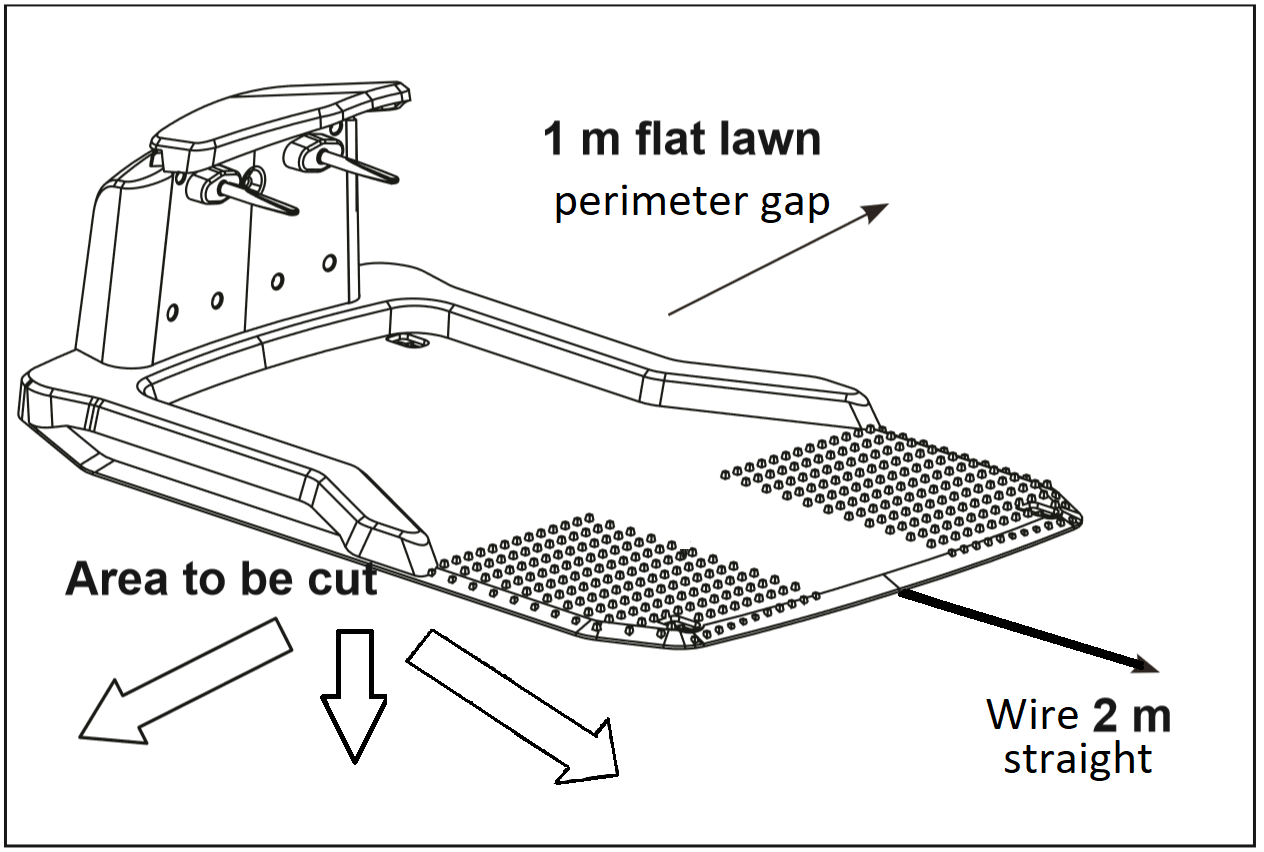
- The wire is positioned in a straight line away from the station
- The wire has not moved, twisted, or become damaged
An incorrectly positioned boundary wire can prevent the mower from detecting the correct route back to the charging station.
2. Check the charging station position
The charging station must be installed in a suitable location to allow the robot mower to return and dock correctly.
Make sure the charging station:
- Is positioned on a flat, level surface
- Has a clear approach area
- Is free from surrounding obstacles such as walls, plants, or garden objects
If the charging station has been moved or the garden layout has changed, check the installation setup again.
Frequently Asked Questions
Why won't my robot mower return to the charging station?
The most common causes are an incorrectly positioned boundary wire or a charging station that is not installed correctly.
Does the boundary wire need to be straight near the charging station?
Yes. The boundary wire in front of and underneath the charging station should be positioned in a straight line to help guide the mower back correctly.
Where should I place my robot mower charging station?
The charging station should be installed on flat ground with enough clear space around it to allow the mower to approach and dock.
Can obstacles stop my robot mower returning to the charger?
Yes. Objects near the charging station can prevent the mower from approaching correctly. Keep the area around the station clear.
What should I do if my robot mower still will not return to the charging station?
If the boundary wire and charging station position have been checked and the issue continues, contact our support team through live chat for further assistance.
Setting up and starting your robot mower
Quick answer
Setting up and starting your robot mower is a simple process, but the steps vary depending on your model.
Before starting your mower, make sure the battery is fully charged, the charging station is correctly installed, and the boundary wire is set up correctly.
Follow the instructions below for your specific robot mower model.
Before you begin
Before starting your robot mower:
- Fully charge the mower battery
- Make sure the charging station is installed on flat, level ground
- Remove any obstacles around the charging station
- Check that the boundary wire is connected correctly
- Confirm the mower and charging station are using the same signal setting (S1 or S2 where applicable)
When charging:
- The battery LED will flash while charging
- The LED will stop flashing when the battery is fully charged
A completely flat battery can take up to 100 minutes to fully charge.
During normal operation, the mower will automatically return to the charging station when required. Once charged, it will continue mowing if there is still time remaining in the programmed cutting cycle.
Steps
Setting up an AMIRO (300-400, 300i-400i)
1. Turn the red power switch towards the “I” symbol to switch the mower on.
- “0” switches the mower off.
- The arrow position removes the red switch.

2. If continuing a previous mowing cycle, press the stop button first. If this is the first setup, continue to the next step.

3. Check that the signal on the robot mower matches the signal shown on the charging station (S1 or S2).
4. Select your required working time.
- 4H = 4 hours
- 6H = 6 hours
- 8H = 8 hours
- 10H = 10 hours
5. Press and hold the unlock button, then press the start button.
The mower will begin its mowing cycle and repeat this schedule at the same time each day.


Setting up a Compact 280R and 400Ri
- Make sure the mower is fully charged.
- Switch on the mower.
- Check that the signal setting matches the charging station (S1 or S2).
- Select your preferred working time.
- Press the start button.
- Press the OK button on the control panel.
The mower will now begin its mowing cycle.

Setting up SA Series (500ECO, 600H and 650ECO)
1. Locate the red power button underneath the rear of the mower.
2. Press the button to switch the mower on.

3. Press the STOP button and lift the control panel cover.
4. Unlock the mower:
Press the lock button four times if using the default setting.
Enter your PIN code if it has been changed.
5. Select your preferred working time.
6. Press the start button.
7. Close the control panel cover.

NOTE: SA600H has a touch screen system. Please see this German Yardforce International video for an idea of the SA600H.
The mower will now begin its mowing cycle.
Note:
The SA600H model uses a touchscreen control panel. Refer to the model-specific instructions for further guidance.
Setting up X Series models
Follow the setup instructions provided with your specific X Series model, as the process varies depending on the mower version.
Sending the robot mower back to the charging station
To manually return your robot mower to the charging station:
- Press the STOP button.
- Lift the control panel cover.
- Unlock the mower:
- Press the lock button four times if using the default PIN.
- Enter your PIN code if it has been changed.
- Press the home button.
- Close the cover.
The mower will return to the charging station and dock automatically.
Frequently Asked Questions
How long does it take to charge my robot mower?
A fully flat battery can take up to 100 minutes to charge.
Why does my robot mower return to the charging station while cutting?
The mower automatically returns to recharge when the battery level is low. Once charged, it will continue mowing if there is still time remaining in the programmed cycle.
Why does my robot mower not start after setup?
Check that:
- The battery is charged
- The mower is unlocked
- The correct working time has been selected
- The mower and charging station have matching signals
- The boundary wire is correctly installed
Does my robot mower repeat the same schedule every day?
Yes. Once the mower has been started, it will repeat the mowing cycle at the same time each day.
How do I manually send my robot mower back to the charger?
Press STOP, unlock the mower, select the home button, and close the cover. The mower will then return to the charging station.
If you continue to experience issues after following these steps, contact our support team through live chat for further assistance.
Installing the boundary wire and charging station correctly
Quick answer
Correct installation of the charging station and boundary wire is essential for your robot mower to work correctly.
An incorrectly positioned charging station or boundary wire can cause issues such as:
- The mower not returning to the charging station
- The mower leaving the mowing area
- The mower not detecting the boundary correctly
- Charging problems
Follow the steps below to correctly install your robot mower charging station and boundary wire.
Before you begin
Before installing the boundary wire and charging station, make sure you have:
- A suitable flat area of lawn for the charging station
- Enough boundary wire to cover your mowing area
- The fixing pegs supplied with your mower
- Access to a power socket for the charging station
Before securing anything permanently, plan the layout of your garden and check the position of the charging station.
AMIRO 400/400i
X series set up video
Planning and installing video for ECO, H, and Pro series
Steps
1. Choose the charging station location
The charging station should be positioned carefully to allow the robot mower to leave and return correctly.
Make sure the charging station:
- Is placed on flat, level ground
- Is positioned near the edge of the lawn
- Has a clear area around it with no obstacles
- Allows the boundary wire to connect easily
The robot mower may not dock correctly if the charging station is installed incorrectly.
Do not secure the charging station permanently until the boundary wire has been installed underneath it.


2. Install the boundary wire
Before installing the wire, plan where the mowing area boundary will be.
The boundary wire should:
- Be positioned approximately 40cm from the edge of the lawn
- Create a clear mowing area for the robot mower
- Be secured using the supplied fixing pegs
Install the wire around the perimeter of your lawn, ensuring it sits flat against the ground.
3. Connect the boundary wire to the charging station
The boundary wire connects to two points on the back of the charging station.
Front section of boundary wire
The wire approaching the charging station from the front should:
- Run underneath the charging station.
- Continue in a straight line towards the rear of the station.
- Connect to the terminal marked “F”.
To connect the wire:
- Strip approximately 10-15mm of insulation from the wire.
- Twist the exposed wire strands together.
- Insert the wire into the connector.
Return section of boundary wire
The other end of the boundary wire should:
- Loop around the mowing area.
- Return to the charging station.
- Connect to the terminal marked “B”.
Repeat the same process to expose enough wire for the connector if required.
4. Check the boundary wire layout
Before securing the installation, check the following:
- There should be at least 2 metres of straight boundary wire in front of the charging station.
- Avoid sharp corners or angles less than 120°.
- The total boundary wire length must not exceed 300 metres.
- Any spare wire should be placed outside the mowing area and underneath the charging station.
Do not coil excess wire, as this may affect the signal.
5. Secure the charging station
Once the boundary wire has been correctly positioned:
- Place the charging station in its final position.
- Secure it using the four supplied fixing pegs.
- Connect the charging station to the mains power supply.
The charging station LED will indicate the boundary wire status:
- S1 or S2 LED illuminated: Installation is working correctly.
- LED flashing: The boundary wire may be broken, disconnected, or incorrectly installed.
Frequently Asked Questions
How far should the boundary wire be from the edge of the lawn?
The boundary wire should normally be positioned around 40cm from the edge of the lawn to allow the mower to cut effectively while staying within the mowing area.
Why is my robot mower not returning to the charging station?
This can be caused by an incorrectly installed boundary wire or charging station. Check that the wire is straight in front of and underneath the charging station and that the station is positioned correctly.
How much space should be left in front of the charging station?
Leave at least 2 metres of straight boundary wire in front of the charging station to allow the mower enough space to approach and dock.
Can I use more than 300 metres of boundary wire?
No. The total boundary wire length should not exceed 300 metres.
Why is the charging station LED flashing?
A flashing LED usually indicates a problem with the boundary wire. Check the wire for breaks, loose connections, or incorrect installation.
Can I roll up spare boundary wire?
No. Excess wire should not be rolled up, as this can interfere with the boundary signal. Place spare wire underneath the charging station and outside the mowing area.
If you continue to experience issues after checking the boundary wire and charging station setup, contact our support team through live chat for further assistance.
How to repair your boundary wire
Quick answer
If your robot mower boundary wire becomes damaged or breaks, it can usually be repaired using the waterproof connector supplied with your mower.
Repairing the boundary wire will restore the connection and allow your robot mower to detect the mowing area correctly.
Before you begin
Before repairing the boundary wire:
- Switch off the robot mower
- Disconnect the charging station from the power supply
- Locate the damaged section of boundary wire
- Have the supplied waterproof connector available
- Make sure the wire ends are clean and accessible
Steps
1. Locate the damaged section of boundary wire
Find the point where the boundary wire has broken or become damaged.
Check the entire wire route if you cannot see an obvious break, as a damaged connection can prevent the robot mower from working correctly.

2. Prepare the wire ends
Before connecting the repair connector:
- Cut away any damaged sections of wire if required.
- Strip approximately 10-15mm of insulation from both wire ends.
- Make sure enough exposed wire is visible to create a secure connection.
If there is not enough exposed wire, use suitable wire strippers to remove additional insulation.

3. Insert the wires into the connector
Insert both ends of the boundary wire into the waterproof connector.
- The wires can be inserted into either side of the connector.
- The order of the wires does not matter.
- Make sure both wires are fully inserted into the connector.
The repair connector will join the two sections of wire and restore the boundary circuit.

4. Secure the connector
Using pliers or a similar tool:
- Place the tool over the top of the connector.
- Apply pressure to close the connector.
- Ensure the connector is fully sealed.
The connector is waterproof and designed to protect the repaired connection from outdoor conditions.
5. Test the robot mower
Once the repair is complete:
- Reconnect the charging station to the power supply.
- Check the charging station indicator light.
- Confirm the boundary wire signal has been restored.
- Test the robot mower operation.
Frequently Asked Questions
How do I know if my boundary wire is broken?
A broken boundary wire may cause your robot mower to stop working correctly or the charging station indicator light may show a warning.
Can I repair the boundary wire without replacing the whole wire?
Yes. A damaged section of boundary wire can normally be repaired using the waterproof connector supplied with your robot mower.
Which way should the wires go into the repair connector?
The wires can be inserted from either side of the connector. The direction does not matter as long as both wires are securely inserted.
Do I need to strip the boundary wire before repairing it?
Yes. Approximately 10-15mm of exposed wire is required to create a secure connection inside the connector.
Is the repaired boundary wire waterproof?
Yes. The supplied connector is designed to create a waterproof connection suitable for outdoor use.
If your robot mower continues to have issues after repairing the boundary wire, contact our support team through live chat for further assistance.
How to install a new on/off switch on your robot lawnmower
Quick answer
If the on/off switch on your robot mower has become damaged, a replacement switch can be fitted by following the steps below.
Make sure you install the switch correctly and do not turn it past the “I” position, as this may damage the new switch.
Before you begin
Before installing the replacement switch:
- Make sure you have received the correct replacement switch for your robot mower
- Switch off the mower
- Disconnect the charging station power supply
- Have a suitable screwdriver available
- Check the replacement switch is not damaged before installation
If the switch on the back of your robot mower has broken, contact our service team to request a replacement part.
Steps
1. Remove the existing switch
- Locate the switch housing on the rear of the robot mower.
- Remove the screw securing the switch in place.
- Carefully remove the damaged switch.

2. Install the replacement switch
- Insert the new switch into the switch housing.
- Turn the switch to the “I” position.
- Check that the robot mower beeps and the control panel lights turn on.
The replacement switch is now installed correctly.

Important information
Do not turn the switch beyond the “I” position.
Turning the switch further than this may damage the switch and cause it to fail again.
Frequently Asked Questions
Where is the robot mower on/off switch located?
The on/off switch is located on the rear of the robot mower.
What should I do if my robot mower switch is broken?
Contact our service team to request a replacement switch.
How do I know if the new switch has been installed correctly?
When the switch is turned to the “I” position, the robot mower should beep and the control panel lights should turn on.
Can I turn the switch past the “I” position?
No. Do not force the switch beyond the “I” position, as this can damage the replacement switch.
If you are still experiencing issues after installing the replacement switch, contact our support team through live chat for further assistance.
Inserting the Safety Key into Your Robotic Mower
Quick answer
The safety key is an important part of your robot mower’s safety system. It acts as a power isolation device and must be correctly inserted before the mower can operate.
If the safety key is not fitted correctly, the robot mower will not:
- Start
- Charge
- Complete scheduled mowing tasks
Follow the steps below to correctly insert the safety key.
Before you begin
Before inserting the safety key:
- Place the robot mower on a flat, stable surface
- Make sure the safety key is clean and free from dirt or debris
- Check that the mower is switched off before inserting the key
- Make sure you have the correct safety key for your mower model
Please find a video walk through
Steps
1. Locate the safety key slot
- Place the robot mower on a flat, stable surface.
- Locate the safety key compartment on the rear of the mower.
2. Check the safety key
Before inserting the key:
- Check that it is clean
- Remove any dirt or debris that may prevent it from fitting correctly
- Check the key is not damaged
3. Align the safety key
Hold the safety key so that it matches the shape and orientation of the slot.
Make sure the key is positioned correctly before inserting it.
4. Insert the safety key
- Carefully push the safety key fully into the slot.
- Apply gentle pressure until the key is securely seated.
The key should fit firmly into place.
5. Switch on the robot mower
Once the safety key is installed:
- Switch on the robot mower according to your model instructions.
- Check that the mower powers on correctly.
Frequently Asked Questions
What does the safety key do on a robot mower?
The safety key is a safety feature that isolates power to the mower. The mower cannot start, charge, or operate without the key correctly inserted.
Why will my robot mower not start after inserting the safety key?
Check that:
- The safety key is fully inserted
- The key is fitted in the correct orientation
- The key and slot are clean
- The mower has sufficient battery charge
Where is the safety key located on my robot mower?
The safety key slot is located on the rear of the mower.
Can I operate my robot mower without the safety key?
No. The safety key must be correctly inserted for the mower to operate safely.
What should I do if my safety key is damaged or missing?
Contact our support team for assistance with obtaining a replacement safety key.
If you continue to experience issues after inserting the safety key, contact our support team through live chat for further assistance.
View ArticleHow to store your robot mower over winter
Quick answer
To keep your robot mower in good condition during the winter months, it should be fully charged, cleaned, switched off, and stored in a dry, frost-free location.
We recommend storing your robot mower, docking station, and power supply indoors, such as in a garage, shed, or other suitable protected area.
Before you begin
Before storing your robot mower for winter:
Choose a dry, frost-free storage location
Allow enough time to fully charge the battery
Have suitable cleaning materials available
Make sure the mower is switched off before disconnecting any cables
Important:
Always charge your robot mower using the supplied charging dock.
Do not use the USB port to charge the mower. The USB port is for diagnostics and servicing only and is not designed for charging. Using the USB port for charging may damage the mower and could affect your warranty.
Steps
1. Fully charge the battery
Before storing your robot mower:
Place the mower on the charging station.
Allow the battery to fully charge.
Once charged, switch the mower off.
A fully charged battery helps protect the mower during storage and ensures it is ready for the next mowing season.
2. Switch off the robot mower
Turn off the mower using the main power switch.
Depending on your model, this may be a red switch located on the rear of the mower.
3. Clean the robot mower
Before storage:
Remove any grass, dirt, or debris from the mower.
Clean around the wheels and cutting area.
Check that the mower is dry before storing.
Keeping the mower clean helps prevent damage and ensures it is ready for use when the mowing season begins.
4. Disconnect the charging station
Prepare the charging station for storage:
Unplug the power supply from the mains socket.
Disconnect the power supply from the docking station.
Disconnect the boundary wire from the docking station.
Remove and clean the docking station.
5. Protect the boundary wire
The boundary wire can remain installed outdoors during winter.
To protect the exposed wire connections:
Use suitable waterproof sealing tape, or
Apply water-resistant grease to exposed wire ends
This helps prevent corrosion and protects the connection for the next season.
6. Store your robot mower and accessories
Store the following items in a dry, frost-free location:
Robot mower
Docking station
Power supply
If available, use the original packaging to protect the mower during storage.
Frequently Asked Questions
Where should I store my robot mower during winter?
Store your robot mower, docking station, and power supply in a dry, frost-free location. A garage, shed, or indoor storage area is recommended.
Should I leave the boundary wire installed over winter?
Yes. The boundary wire can remain installed outdoors. Protect any exposed wire connections from moisture and corrosion.
Should I remove the charging station during winter?
Yes. We recommend disconnecting and storing the docking station and power supply in a dry location during the winter months.
Can I charge my robot mower using the USB port?
No. The USB port is only for diagnostics and servicing. It is not designed for charging and using it to charge the mower may cause damage.
How do I prepare my robot mower for spring?
Before using your mower again:
Reconnect the docking station and boundary wire
Check the power supply
Fully charge the battery
Check the mower settings
Test the mower operation
Robot mower help and troubleshooting videos
Quick answer
If you need help setting up, adjusting, or troubleshooting your Yard Force robot mower, the videos below cover common installation steps, settings, and maintenance tasks.
Select the video that matches your robot mower model to find guidance on setup, configuration, and repairs.
Before you begin
Before watching the videos:
- Check your robot mower model
- Have your mower manual available if required
- Make sure your charging station and boundary wire are installed correctly
- Follow the instructions that match your specific mower series
If you are experiencing installation issues after watching the videos, see our guide on installing the boundary wire and charging station correctly.
How to plan and install your robot mower
This video covers the setup process for most Yard Force robot mower models, including:
- Charging station installation
- Boundary wire planning
- Initial setup
This applies to all Yard Force robot mowers except Series X models.
If you continue to experience issues, see our guide on installing the boundary wire and charging station correctly.
Yard Force ECO model settings
This video covers the available settings on ECO model robot mowers, including:
- Unlocking the mower
- Changing the PIN code
- Setting the working time
- Changing the boundary signal
Yard Force H model settings
This video covers the available settings on H model robot mowers, including:
- Setting the date and time
- Changing the PIN code
- Setting the working time
- Adjusting the rain sensor
- Changing the boundary signal
Yard Force PRO model settings
This video covers the available settings on PRO model robot mowers, including:
- Changing the PIN code
- Changing the language
- Setting the working time
- Adjusting date and time settings
- Boundary settings
- Rain sensor settings
- Multi-zone settings
- Changing the boundary signal
How to plan and install your Robot Mower Series X
This video covers the setup process for Series X robot mowers, including installation guidance.
If you continue to experience issues, see our guide on installing the boundary wire and charging station correctly.
How to change the blades on your robot mower
This video explains how to safely replace the cutting blades on your robot mower.
This applies to all Yard Force robot mower models.
Yard Force SC model settings and setup
This video covers the installation and settings for SC model robot mowers.
If you continue to experience installation issues, see our guide on installing the boundary wire and charging station correctly.
Yard Force SE model settings and setup
This video covers the installation and settings for SE model robot mowers.
If you continue to experience installation issues, see our guide on installing the boundary wire and charging station correctly.
Yard Force Compact model installation
This video covers the installation process for Compact model robot mowers.
If you continue to experience installation issues, see our guide on installing the boundary wire and charging station correctly.
Yard Force Amiro model installation and settings
This video covers the installation process and settings for Amiro model robot mowers.
If you continue to experience installation issues, see our guide on installing the boundary wire and charging station correctly.
Frequently Asked Questions
Which video should I watch for my robot mower?
Choose the video that matches your robot mower series or model. Using the correct guide will ensure the settings and installation steps match your mower.
Do these videos cover all Yard Force robot mowers?
The videos cover the main Yard Force robot mower ranges, including ECO, H, PRO, Series X, SC, SE, Compact, and Amiro models.
Where can I find help installing my boundary wire?
For detailed written instructions, see our guide on installing the boundary wire and charging station correctly.
Can I change settings using these videos?
Yes. The settings videos explain how to adjust features such as working times, PIN codes, signals, rain sensors, and other mower settings.
What should I do if the videos do not solve my issue?
If you still experience problems after following the videos and troubleshooting steps, contact our support team through live chat for further assistance.